ZekoraPay

📖 User Guide

Mobile & Web Super App

Ouvrir l'App
🎟️

User Guide

Events & Tickets

Any logged-in user can create an event, define ticket tiers and collect payments. Buyers receive a unique QR. The organizer validates entries by camera scan or code entry.

🏗️ Create event 🎪 Organizer 🎫 Buy ticket 📷 Validate entry 🔑 Event code 📊 Statuses
💡

Who can create an event?

Any logged-in ZekoraPay user can create an event — whether an individual, business manager or association admin. They automatically become the event organizer.

🏗️

Create an event

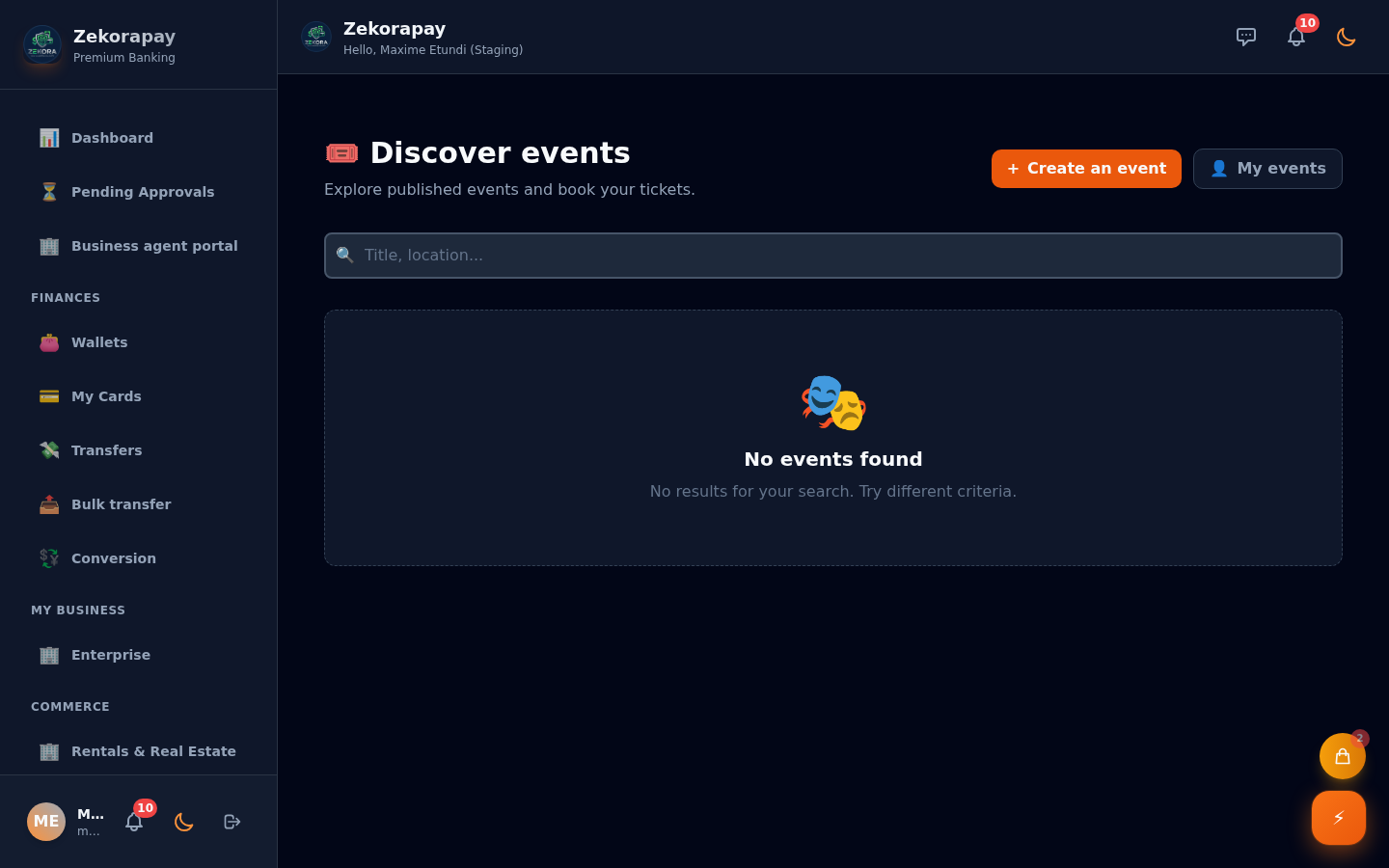
Accessible from /events → « Create » button
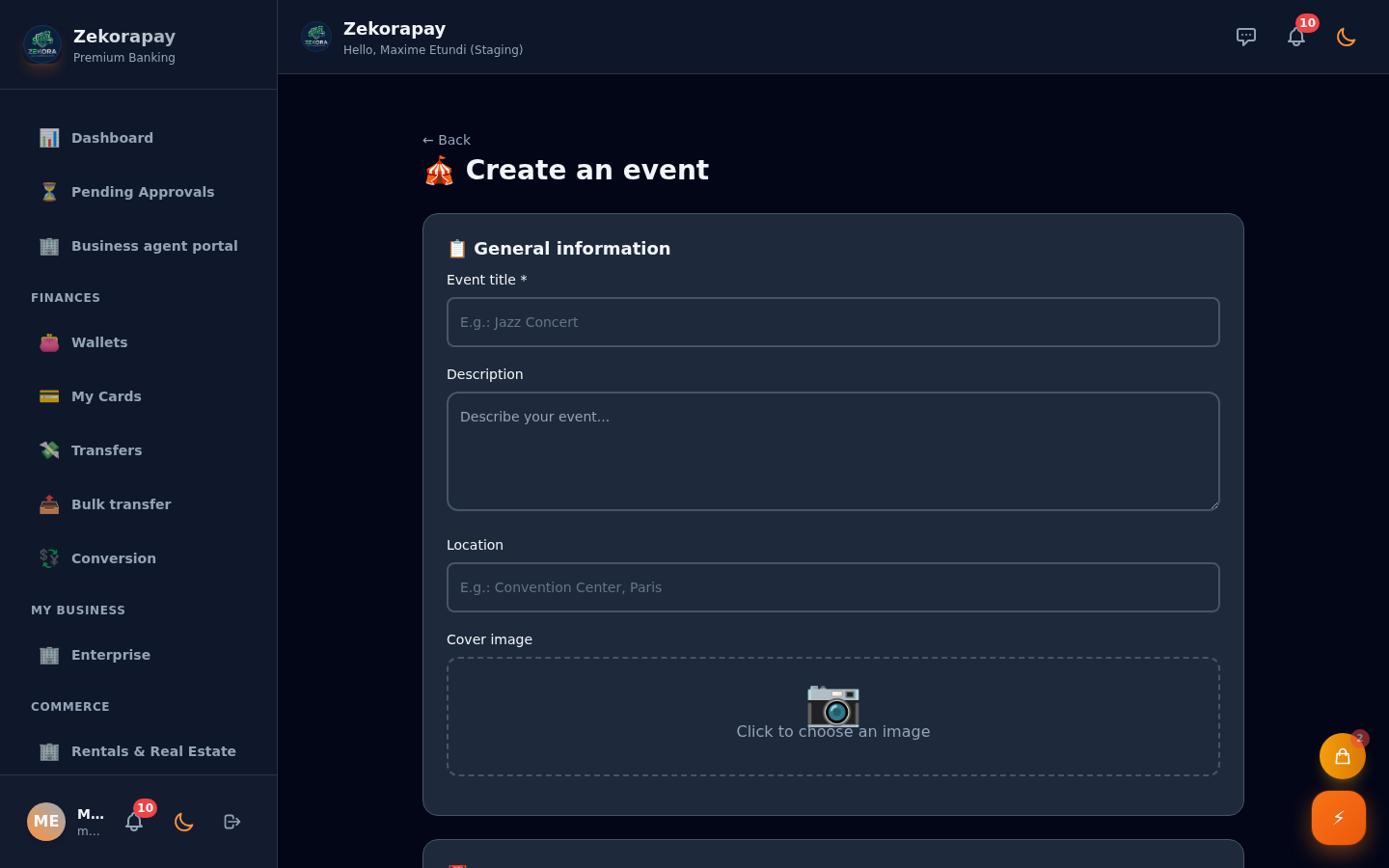
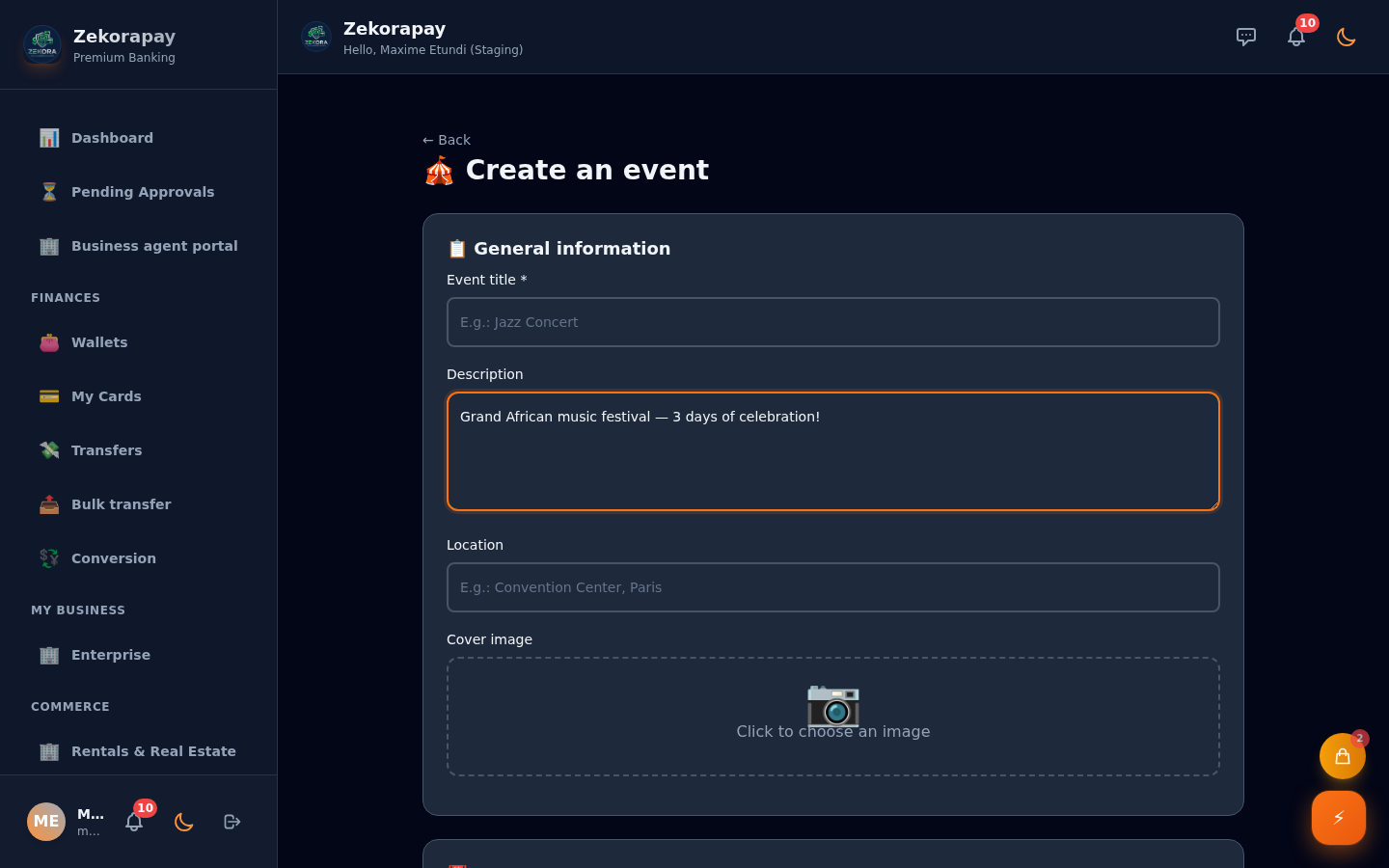
Section 1 📋 General information

Title requis

Public event name

Description

Free text

Location

City, venue, address or virtual link

Cover image

Photo upload (JPG/PNG)

Section 2 📅 Dates & Currency

Start date/time

When the event begins

End date/time

When the event ends

Sale start

When ticket sales open

Sale end

When ticket sales close

Currency

Your wallet currency (XOF, EUR…)

Section 3 📝 Buyer form fields

Information to collect from each buyer at purchase. Each field can be required or optional.

Free text Email Phone Number Dropdown (select) Checkbox
Section 4 🎫 Ticket tiers

Create multiple ticket tiers (VIP, Standard, Free…). Each tier has its own settings.

🏷️

Name

E.g. VIP, Standard, Early Bird

💰

Price

0 for free, otherwise amount in currency

🔢

Quantity

Max tickets available

👤

Max / buyer

Limit per person (optional)

🎨

Color

Tier color code

😊

Icon

Emoji for the tier

Creation form
Filled form
🎪

Organizer actions

Only accessible to the event creator

📊

View sold tickets

Dashboard: sold per tier, total revenue, fill rate. "View sold tickets" button from event page.

💰

Withdraw funds

Shows collected balance. A form asks for destination wallet and amount. 🔐 PIN required to confirm.

Cancel event

Delete button in sold tickets view. Requires confirmation. Buyers are automatically refunded.

🔑

Share code/QR

Organizer sees their event QR + unique event_code (e.g. EVT-ABCD12). Can copy, download as PNG or share.

📷

Scan tickets at entry

Opens scanner modal. Two modes: camera (auto QR scan) or manual ticket code entry. See Validate entries section.
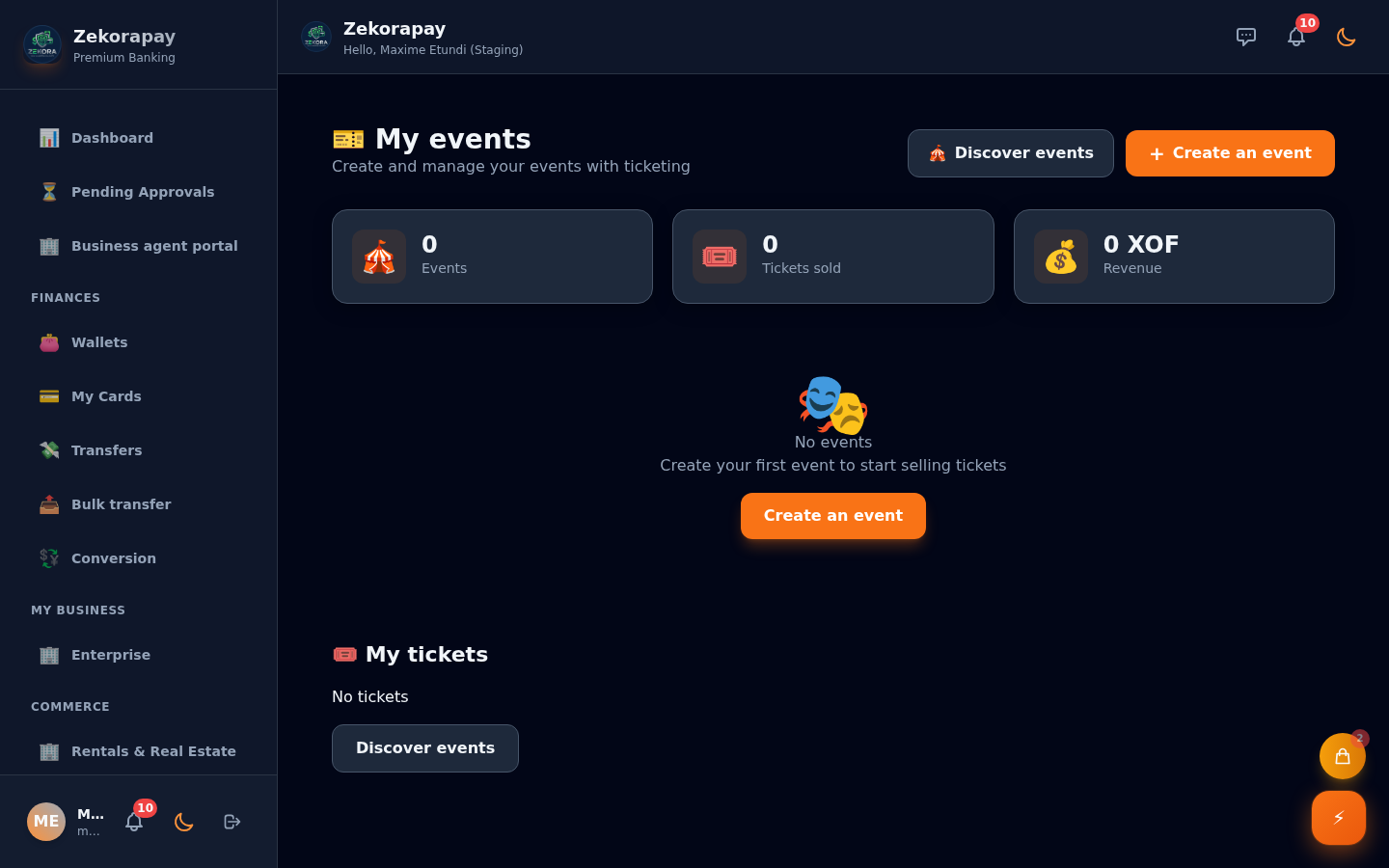
My events
🎫

Buy a ticket

Any logged-in user can buy (except the organizer)

1

Find the event

From /events (catalog) or via event code /events/code/[CODE]

2

Choose a tier

Click a tier: VIP, Standard, Free, etc.

3

Fill the form

Enter fields defined by the organizer (name, email, etc.)

4

Choose quantity

1 to N tickets (within max/buyer and stock limit)

🔐

Confirm with PIN

ZekoraPay PIN modal (anti-keylogger pad). Amount is debited from wallet.

Ticket received

A unique QR is generated. Visible in "My events" → ticket.

🎫 The received ticket contains

✓ Unique QR Code
✓ Ticket code (ticket_code)
✓ Event name
✓ Tier
✓ Status: valid / used
📷

Validate event entries

From the event page → Scan tickets

📷 Camera mode (QR scan)

  1. Open the event page
  2. Click "Scan tickets"
  3. Allow camera access
  4. Point camera at ticket QR
  5. Instant result: ✅ valid or ❌ invalid
  6. Click "Mark as used" to confirm entry

⌨️ Manual entry mode

If the camera is unavailable, the input field lets you directly type the ticket code (ticket_code) and click "Verify".

TICKET-XXXXXXXX

Visible on buyer's ticket

VALID ticket

Tier code, buyer details shown → click "Mark as used"

INVALID ticket

Already used, wrong code, or different event

🔑

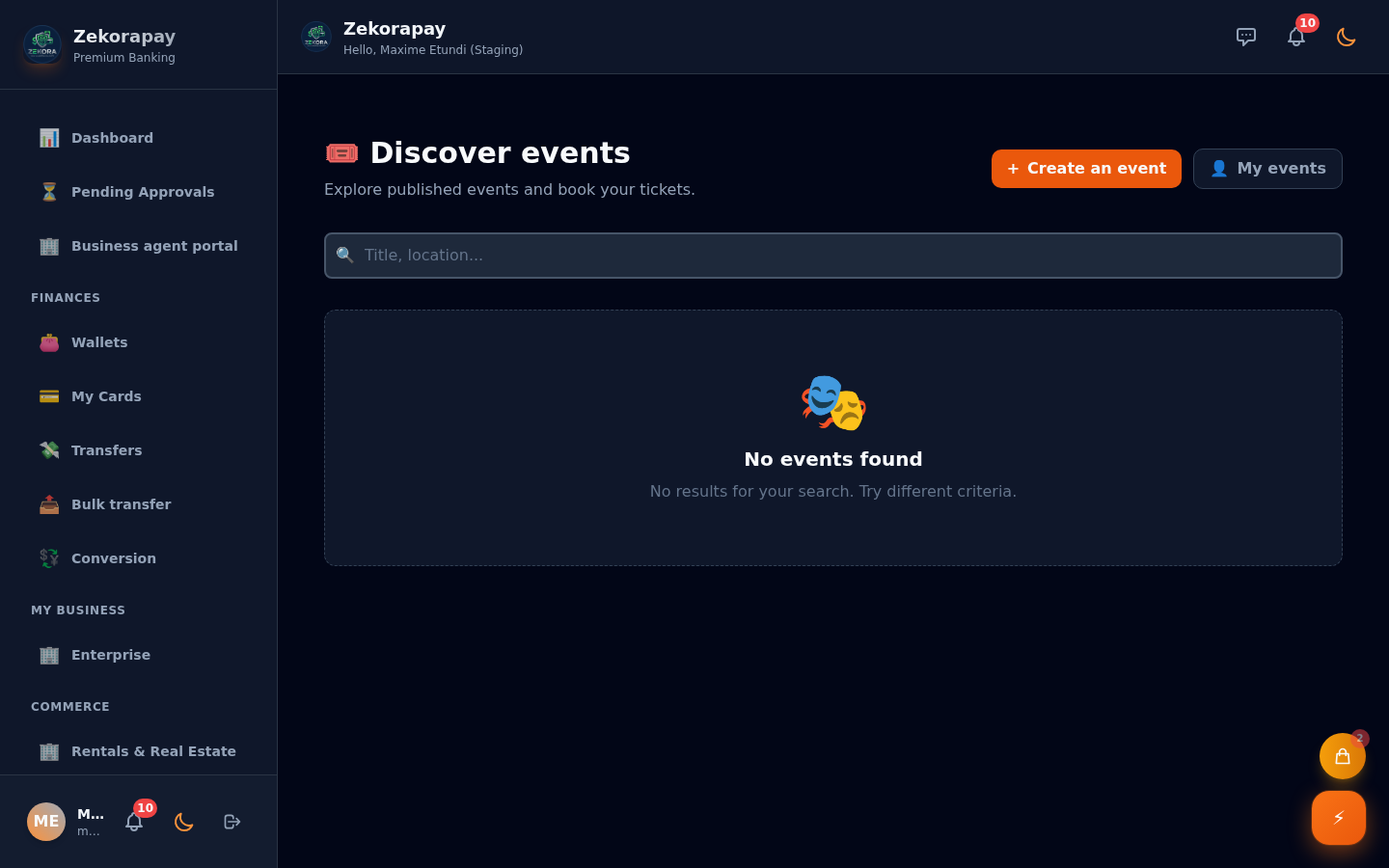
Event code — Quick access

Each event has a unique code (event_code, e.g. EVT-ABC123). This code lets anyone find the event directly, even without browsing the list:
app.zekorapay.com/events/code/EVT-ABC123
Downloadable QR Code (PNG) 1-click code copy Native share (Web Share API)
📊

Event and ticket statuses

Event

draft Draft — not published
active Active — tickets on sale
ended Ended — sales closed
cancelled Cancelled — refunds processed

Ticket

paid Paid — valid at entry
used Used — entry already validated

📸 App screenshots

Event catalog

Event catalog

Browse / Filters

Browse / Filters

Event creation

Event creation

My events

My events

← Previous

🤝 Associations

Back

🏠 Guide home